How to give read-only access to your Google Ads account
 by Harry Watts
It takes about two minutes. In Google Ads, click Admin, then Access and security, then the Users tab. Click the blue +, type the email address you've been given, choose Read only and click Send invitation. Read only means the person can see the account and change nothing in it.
Step by step
- Sign in to Google Ads. Go to ads.google.com and sign in with the Google account you use for your ads. If you're shown a list of accounts, click the one with your business's name.
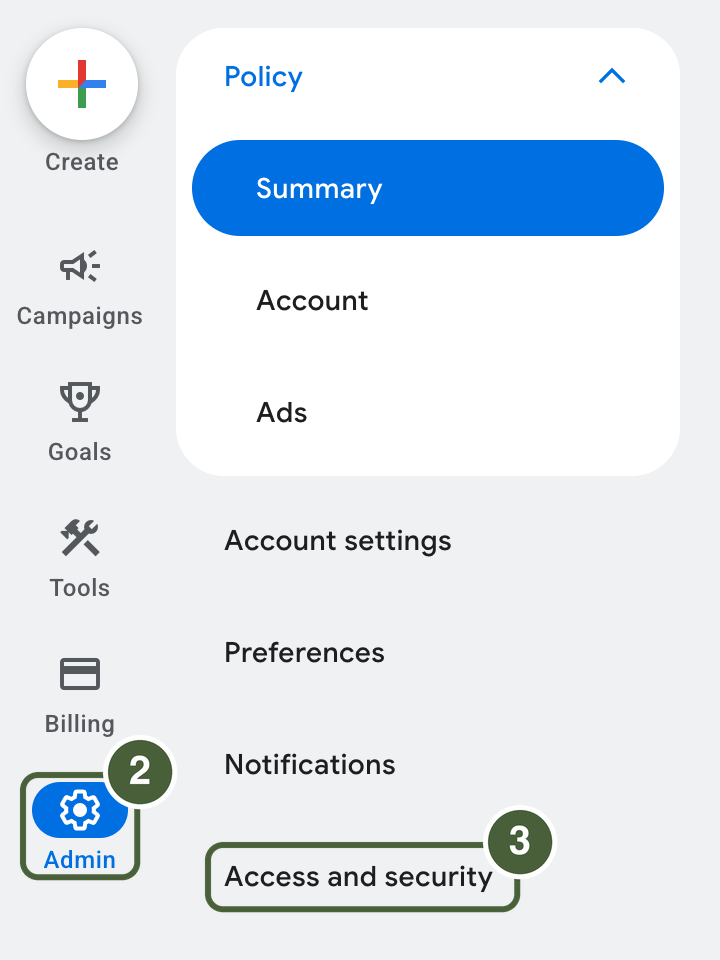
- Click Admin. It's the cog near the bottom of the menu on the left.
- Click Access and security. It's the last item in the menu that opens beside it.
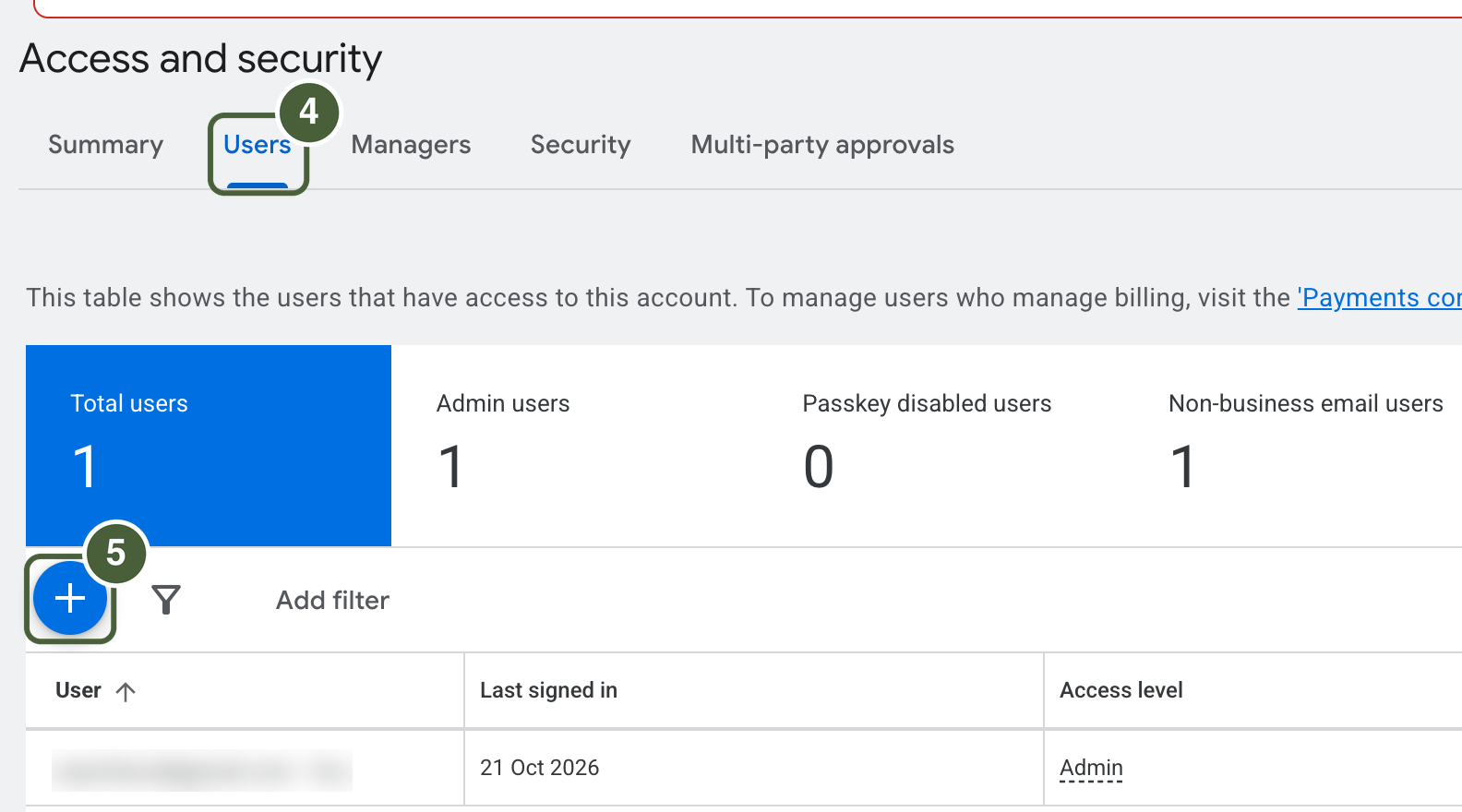
- Open the Users tab. It sits along the top, next to Summary.
- Click the blue + button. It's just above the list of people who already have access.
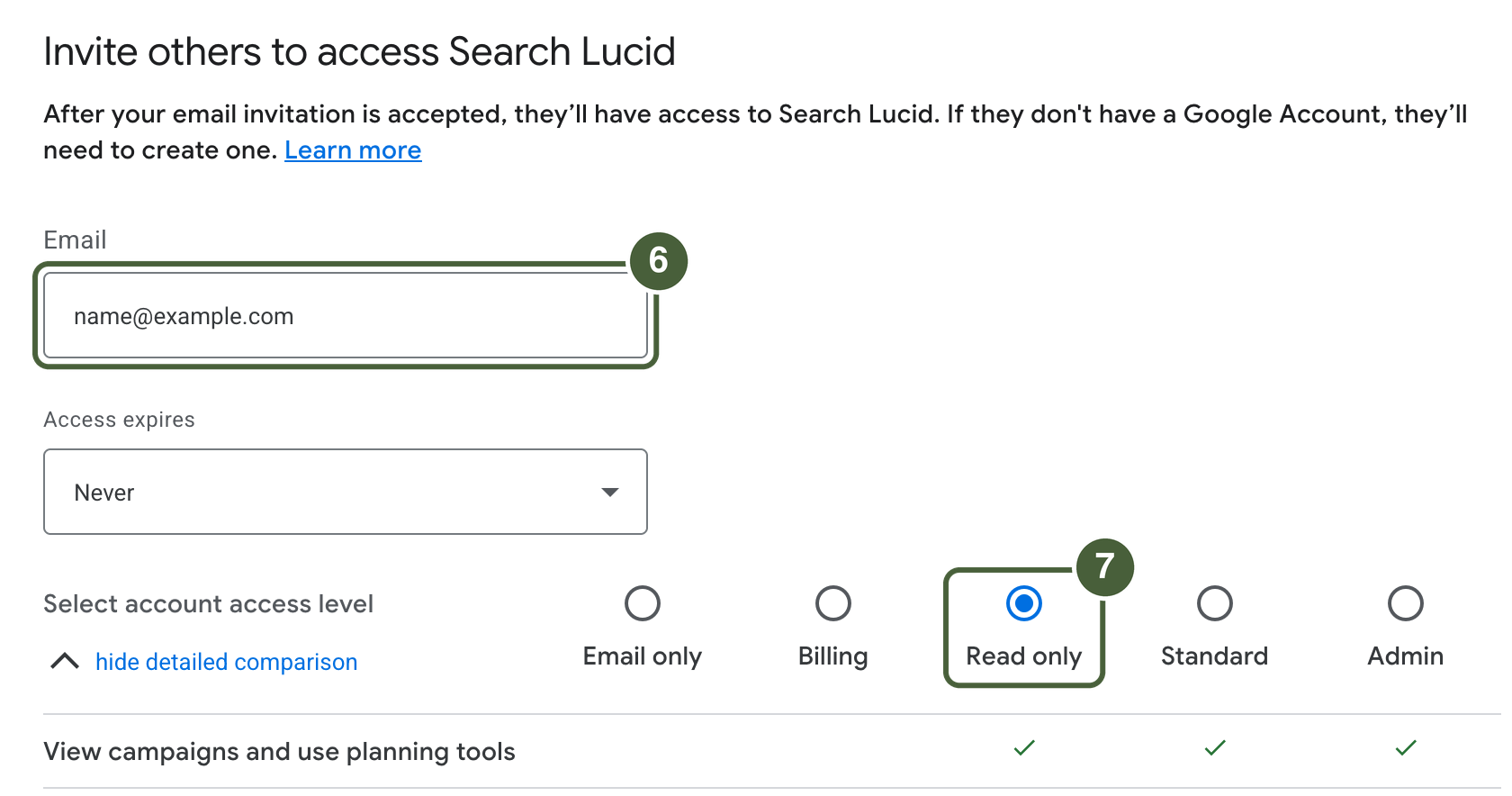
- Type the email address of the person who needs access. Leave Access expires on Never; you can remove access yourself at any time.
- Choose Read only. It's the middle of the five options under Select account access level.
- Click Send invitation. Scroll down past the table of ticks if you can't see it.
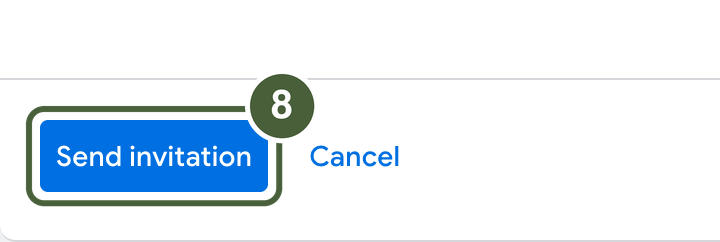
That's it. The person gets an email from Google, accepts the invitation, and can then see the account. Until they accept, they appear in your Users list as a pending invitation.
What read-only access lets someone do
Google Ads has five access levels (Google's access levels page). Read only is the one for someone who needs to look but not touch:
- They can see your campaigns, ads, keywords and results, run reports, and see billing information.
- They can't edit campaigns or budgets, edit billing information or payment methods, make payments, or change anyone's access level.
That's what an audit needs: enough to see everything that has happened in the account, and no way to change any of it.
If it doesn't look like this
- There's no + button, or no Access and security. Only Admin users can give access to anyone else. If your sign-in isn't an Admin, ask whoever is, often the person or agency who set the account up. If nobody in your business is an Admin on your own account, that's worth fixing whatever happens next.
- You can't find your account. You may be signed in with a different Google account from the one that has access. Check the address at the top right of the screen.
- The screens look different. Google redesigns this area from time to time. Look for the cog labelled Admin and the words Access and security. I check these screenshots every three months.
- You'd rather not give access at all. That's fine. A PDF export of the last 90 days at campaign level, plus your search terms report, covers most of what an audit needs.
Taking access away again
Go back to Admin, then Access and security, then Users. Find the person and choose Remove access in the Actions column, at the far right of the table (scroll sideways if you can't see it). An invitation that hasn't been accepted yet can be revoked from the same column (Google's page on managing access).
Quick answers
Can read-only access change anything?
No. Google says Read only can view campaigns, reports and billing information, but can't edit campaigns, edit billing information, make payments or change anyone's access level.
How is access removed?
In Admin, open Access and security, find them on the Users tab and choose Remove access in the Actions column. An invitation that hasn't been accepted yet can be revoked from the same place.
Why is there no + button?
Only users with Admin access can give access to anyone else. If your sign-in isn't an Admin, ask whoever is, often the person or agency who set the account up, to send the invitation or to make you an Admin.